How to use PostBuild Works
PostBuild Works picks up where JobTread leaves off when a job closes. It sends each homeowner a warranty certificate and a home binder, keeps in touch, takes warranty requests, sends work orders to your subs and chases them until the fix is done. It also turns past customers into new work. Setup takes about 10 minutes. After that it runs on its own.
What's new (November 2026)
- Easier JobTread setup. Seven numbered steps in plain words. One button adds our fields to JobTread for you (Step 3).
- Work orders to subs. They go out from JobTread. The sub books the visit and closes it out with photos, and we remind them until it's done (how it works).
- Reports. See every claim by sub, status, project or area of the house. Find out which subs cost you the most (section 6).
- Two-way JobTread. Visits show up on the job's schedule. A note goes on the job for each step. Requests from your own JobTread warranty form land on your board (details).
- Preview as homeowner. See exactly what your customer sees, like JobTread's customer preview (section 4).
- A better request form. Homeowners tap the part of the house on a drawing. We added Laundry & utility, Garage, Siding & trim, and Gutters & downspouts (section 11).
1. Get started
- Sign up on the PostBuild Works home page. You'll need your name, company, email and a password (10 or more characters). You'll also agree to the Terms, Master Services Agreement and Privacy Notice. Then you pay for your plan on Stripe's secure checkout, and the account turns on as soon as payment goes through. There is no free trial. To look around first, use Try it now on the home page.
- Open the JobTread page and follow the 7 numbered steps (section 3). Each one turns green when it's done.
- Preview a binder from a real closed job. Then let it run.
2. Overview
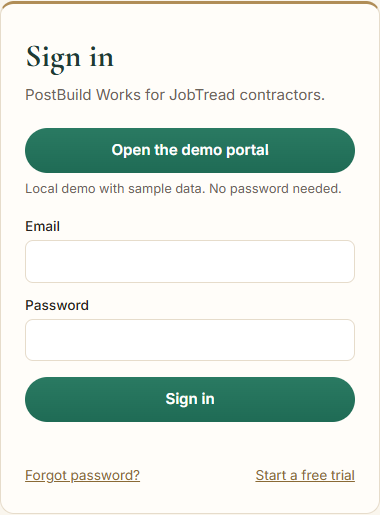
The Overview page is your home base. It shows:
- Four totals: homes under care, open claims, follow-ups this month, and work booked from past customers. Click any total to jump to its page.
- Coming up: the next emails each homeowner will get, such as check-ins, seasonal care tips and review requests.
- Needs you: new warranty requests and any welcome emails waiting for your OK.
- Recent activity: what PostBuild Works did, including what it read from and wrote to JobTread.
- Check JobTread now looks for newly closed jobs right away. It also checks on its own every 15 minutes.
- Preview as homeowner opens a homeowner's binder the way they see it (more on previews).
3. Set up JobTread
Open the JobTread page. You'll see 7 numbered steps across the top. Go from top to bottom. Each step turns green with a ✓ when it's done. Everything saves as you go, so you can stop and come back any time.
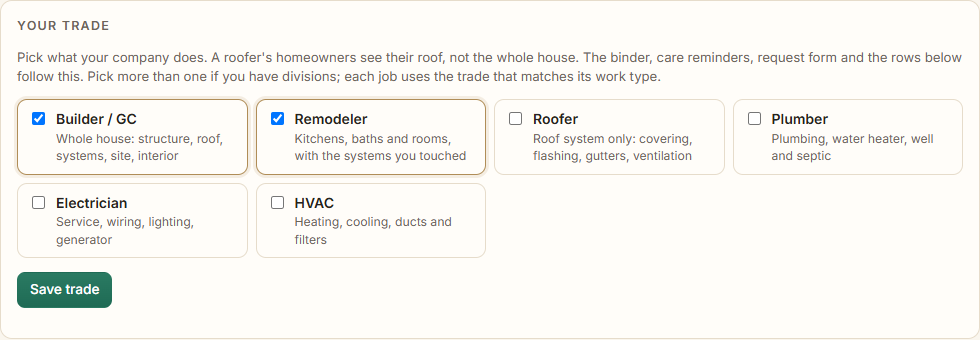
Step 1 · What kind of work do you do?
Tick what your company does: Builder / GC, Remodeler, Roofer, Plumber, Electrician or HVAC. This decides what your homeowners see and what setup asks you for. For example, a roofer's homeowners see their roof, not the whole house, and a roofer is never asked for a furnace filter size.
Have divisions? Tick more than one. Each job then uses the trade that matches its job type.
Step 2 · Connect your JobTread account
You need a JobTread grant key. It's a long code that lets PostBuild Works talk to JobTread. Only the JobTread account owner can make one.
- Open JobTread in another tab.
- Go to Settings, then API grants.
- Make a new grant. Name it PostBuild Works and save it.
- JobTread shows the code one time. Copy it.
- Come back to PostBuild Works, paste it in the box, and click Connect.
Right after you connect, we look through your JobTread account. We find your forms, custom fields, vendors and file folders, and we make a first guess at where everything lives.
Step 3 · Add our fields to JobTread
PostBuild Works keeps a few things on your JobTread jobs and vendors, like a link to the homeowner's binder and each sub's warranty score. JobTread calls these custom fields. Here they are:
| Field name in JobTread | Goes on | Type | What it's for |
|---|---|---|---|
pbw_binder_link | Each job | URL | A link to this homeowner's binder. Click it in JobTread to see what they see. |
pbw_portal_link | Each job | URL | A link that opens this home in PostBuild Works. |
pbw_warranty_ends | Each job | Date | The day the warranty runs out, so you can see it on the job. |
Job Type | Each job | Text | What kind of job it was (kitchen, bath, roof). It picks the right care tips. Only added if you don't have one already. |
Permit # | Each job | Text | The permit number. It's printed in the homeowner's binder. Only added if you don't have one already. |
Paint & finish colors | Each job | Text | Paint colors used, so the homeowner can touch up later. Only added if you don't have one already. |
pbw_warranty_callbacks | Each vendor (sub) | Number | How many warranty callbacks this sub has had. |
pbw_warranty_cost | Each vendor (sub) | Number | What this sub's warranty fixes have cost you, in dollars. |
pbw_callbacks_per_10_homes | Each vendor (sub) | Number | Callbacks for every 10 homes they worked on. Lower is better. |
pbw_scorecard_link | Each vendor (sub) | URL | A link to this sub's warranty report in PostBuild Works. |
Each row shows ✓ In JobTread (or ✓ You have one) or Will be added.
- Click the green button: Add 7 fields to JobTread for me. (The number is how many you're missing.)
- That's it. We add the missing ones and hook them up. You don't have to do anything in JobTread.
Rather do it yourself?
- In JobTread, go to Settings → Custom Fields.
- For each row that says "Will be added," add a field. Pick where it goes (Job or Vendor).
- Type the name exactly as shown, with the same spelling and underscores. Pick the type shown.
- Save. Then come back to PostBuild Works and click Rescan JobTread at the top.
Step 4 · Show us where your info lives
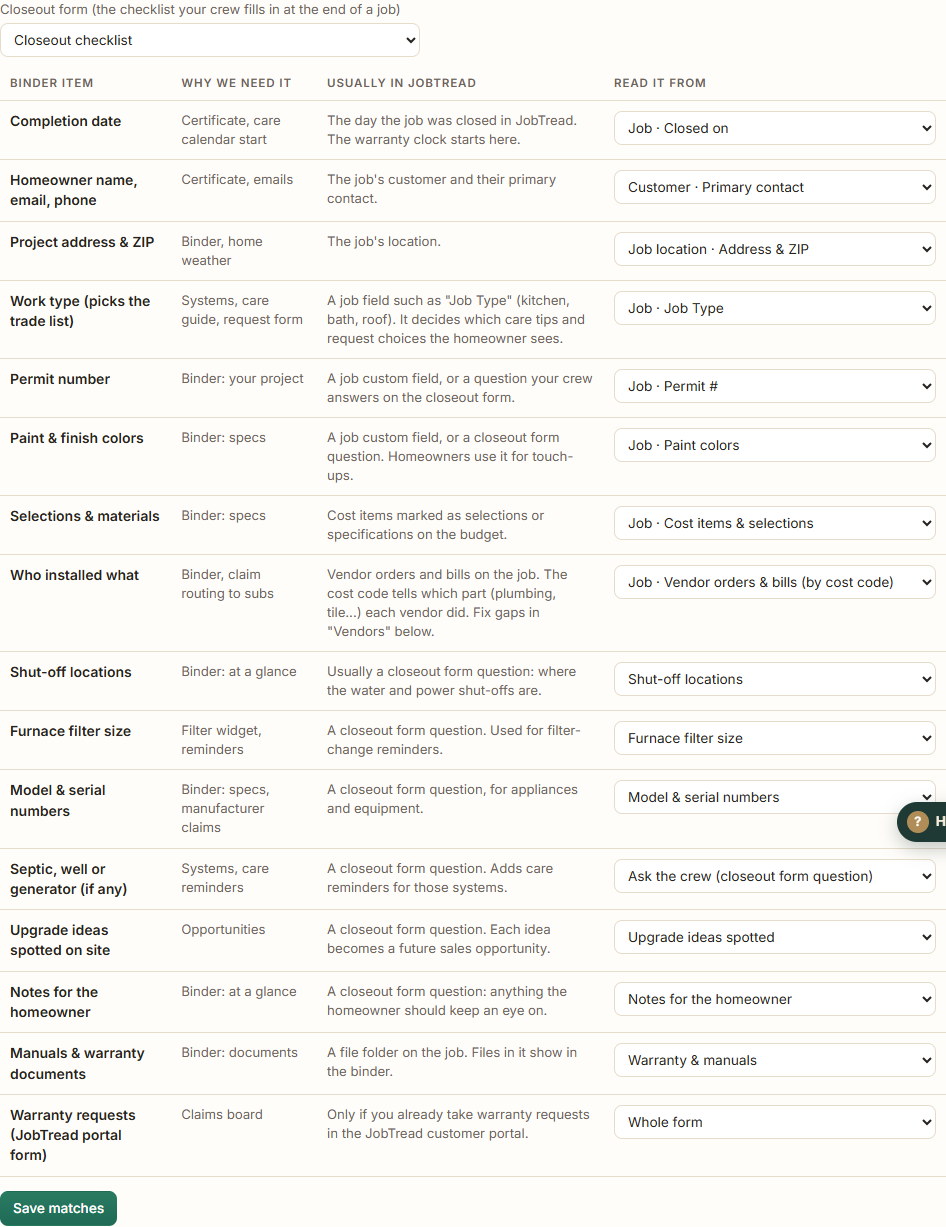
Your binder fills itself in from JobTread, so nobody types anything twice. We already made our best guess for every row. Read down the list. If a row looks wrong, pick the right spot. Not sure? Leave it. Rows we couldn't find say Not set.
The columns:
- What we need: one piece of the binder, like the completion date or where the shut-offs are.
- Where it shows up: the certificate, the binder or a reminder.
- Where it usually is in JobTread: where most contractors keep it.
- Read it from: where we'll read it in your JobTread.
| Choice in "Read it from" | What it means |
|---|---|
| Job · … | A normal part of the JobTread job (closed date, customer, location, cost items, vendor orders), or one of your job custom fields. |
| Form: … | A question on one of your JobTread forms, usually the closeout checklist your crew fills in. |
| Ask the crew | The question doesn't exist yet. Add it to your closeout form, and we'll read the answer. |
| Set in PostBuild Works | You type it in for each home, on the Homes page. |
| Skip | Leave it out of the binder. |
Closeout form: pick the checklist your crew fills in at the end of a job. Shut-offs, filter size, model and serial numbers, upgrade ideas and notes for the homeowner usually come from it.
Warranty requests row: do you already take warranty requests on a JobTread form? Pick that form in this row. Every time someone fills it in, the request shows up on your claims board. (We pick it for you if the form's name has "warranty" in it.)
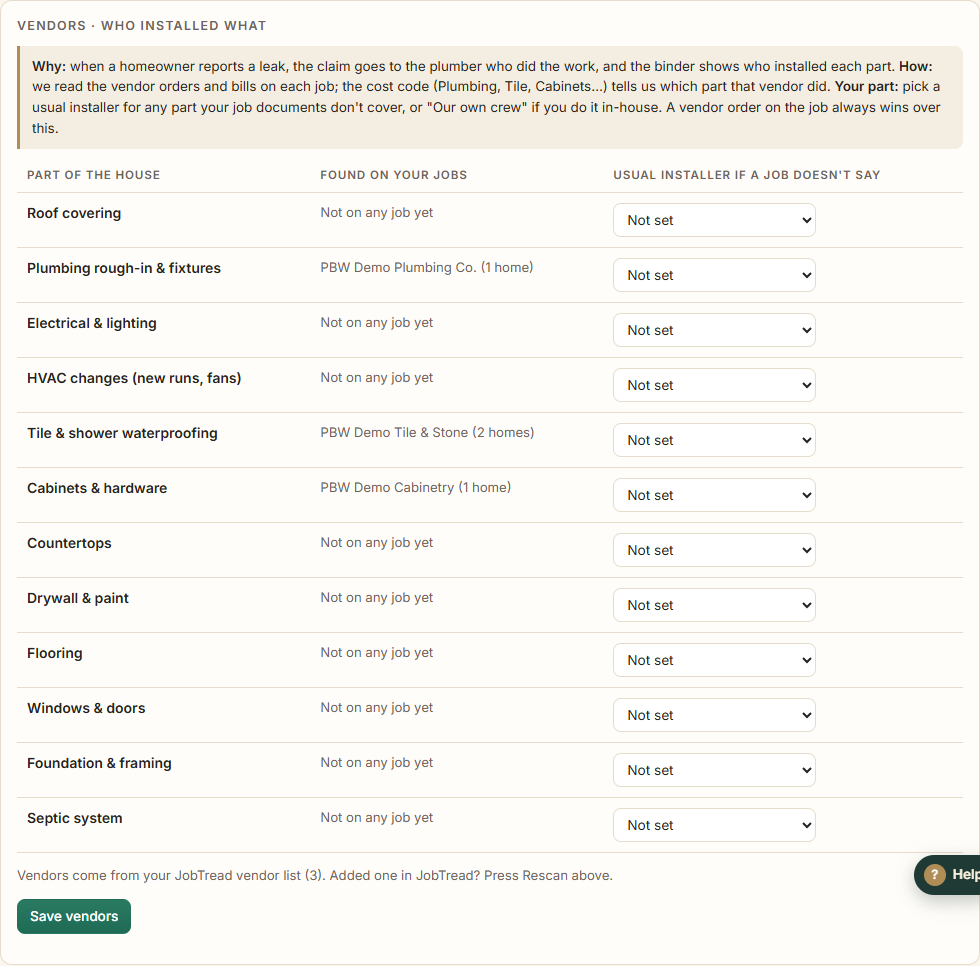
Step 5 · Who installed what?
Why it matters: when a homeowner says the shower leaks, the claim should go to the plumber who did the work. The binder also shows who installed each part of the house.
How we figure it out: we read the vendor orders and bills on each job. The cost code on each one (Plumbing, Tile, Cabinets…) tells us which part that vendor did.
What you do: for any part where we didn't find anyone, pick who usually does it from your JobTread vendor list, or Our own crew. A vendor order on the job always wins over this.
Step 6 · When should a home start?
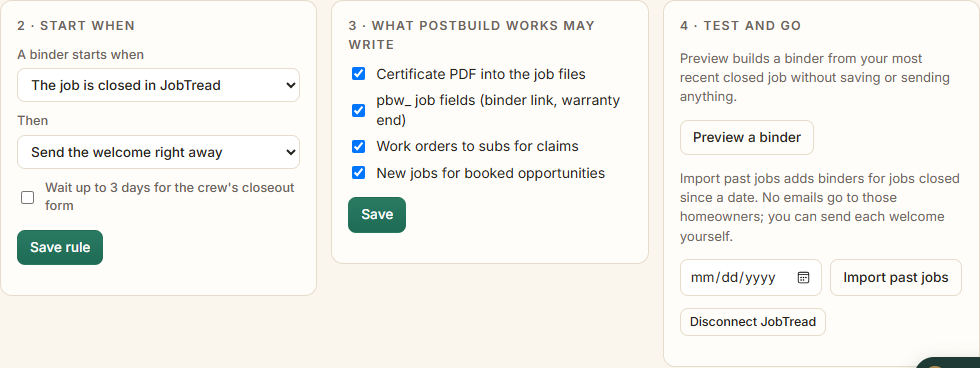
Pick what starts a home's binder:
- the job is closed in JobTread (most contractors pick this), or
- a job field reaches a value you pick, like "Stage = Complete".
Then pick when the welcome email goes out: right away, the next morning, or held for your OK. You can also wait up to 3 days for the crew's closeout form, so the binder is complete.
What PostBuild Works may add in JobTread. Leave them all on unless you have a reason. Each one can be switched off:
- Certificate: puts the warranty certificate PDF in the job's files.
- pbw_ fields: fills in the binder link, portal link and warranty end date on the job.
- Visits: puts each warranty visit on the job's schedule.
- Notes: leaves an office-only note on the job for each warranty step.
- Work orders: sends work orders to subs from JobTread.
- Sub scorecards: updates each sub's warranty numbers on their vendor record.
- New jobs: makes a new job when a past customer books more work.
pbw_ fields, files, notes, schedule items and documents.Step 7 · Try it
- Preview a binder builds one from your most recent closed job. Nothing is saved or sent. Use it to check your matches.
- Preview as homeowner opens a real home's binder the way the homeowner sees it.
- Bring in past jobs adds binders for jobs closed in the last 90 days. That is a fixed limit: older jobs are never brought in. They come in 10 at a time in the background, so even a big account never slows anything down, and each job is brought in only once. Those homeowners get no emails unless you send them yourself from the Homes page.
Happy with the preview? You're done. New closed jobs show up on their own.
How JobTread stays in sync (both ways)
PostBuild Works runs the warranty work and keeps your JobTread job up to date. Your office can stay in JobTread and still see everything.
| When this happens… | …this happens on its own |
|---|---|
| Someone fills in your JobTread warranty form | It becomes a claim on your board. If that job is older and has no home yet, we build the home too, held so the homeowner gets no surprise welcome email. |
| A homeowner sends a request, a visit is booked, or a claim is fixed | An office-only note goes on the JobTread job. Customers and subs can't see it. |
| A visit date is set in PostBuild Works | The visit goes on the job's schedule in JobTread. |
| Someone moves that visit in JobTread | The new date shows up in PostBuild Works. |
| Someone checks off that visit in JobTread | The claim is marked fixed in PostBuild Works. |
| A cost is entered on the work order in JobTread | It becomes the claim's cost to fix, unless you typed a cost yourself (yours always wins). |
| A sub's callbacks or cost change | Their pbw_warranty_ numbers on their JobTread vendor record update. |
We check JobTread every 15 minutes, or right away when you click Check for new jobs now.
4. Homes
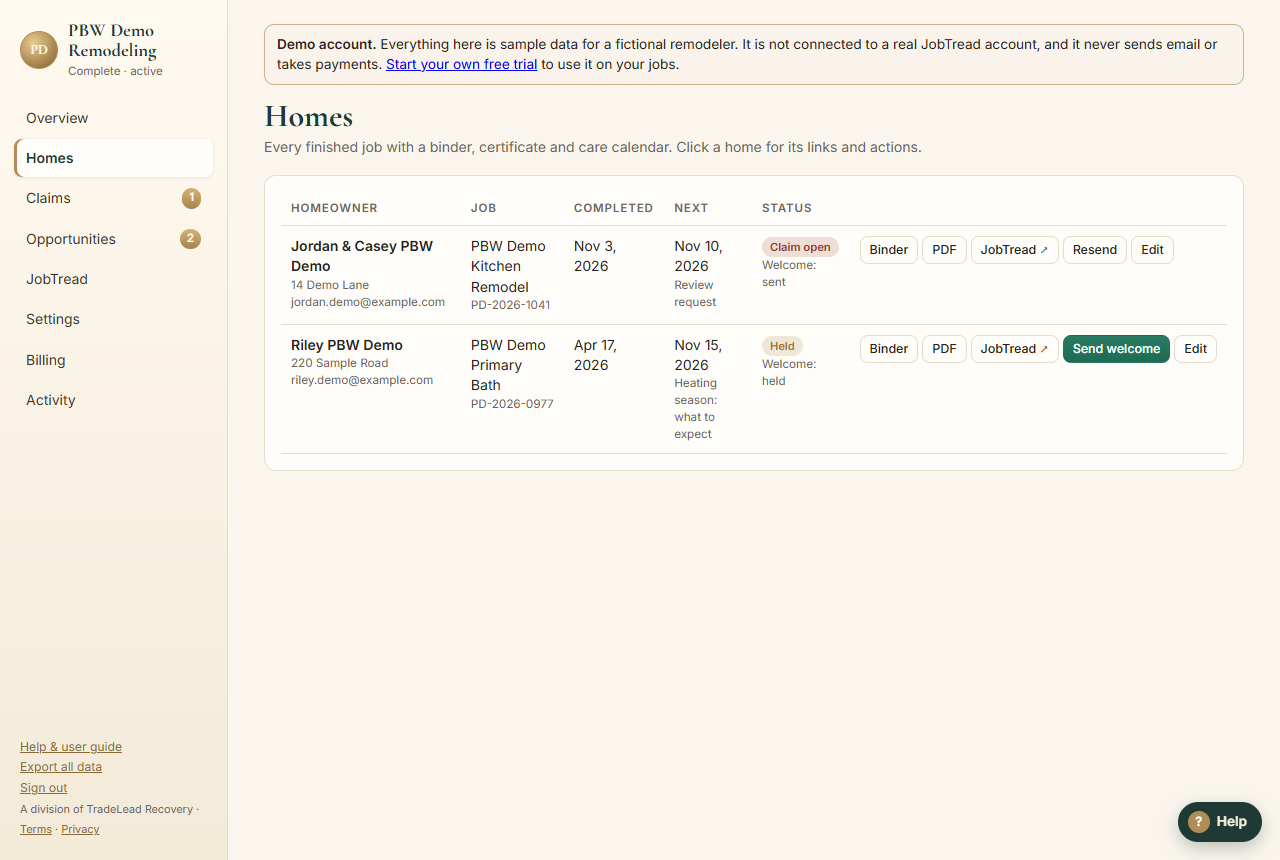
Every closed job becomes a home. Each row shows:
- the homeowner and address
- the job and completion date
- the next follow-up
- open claims
- the warranty status (Active, Claim open, Courtesy, Expired, Held or Transferred)
- Preview as homeowner: opens the binder exactly as the homeowner sees it.
- PDF: the warranty certificate.
- Send welcome: sends a held welcome.
- Resend: re-sends the welcome and binder link, for example if the homeowner lost it.
- Edit: fixes the email, phone or other details.
- JobTread ↗: opens the original job in JobTread.
Preview as homeowner
Like JobTread's customer preview. You'll find the button on the Overview, on each home here, and on each claim card (Homeowner view). A dark bar across the top says "Preview: this is what [homeowner] sees." Only you see that bar. Your homeowner never does.
The pbw_portal_link field on a JobTread job opens that home right here.
5. Claims
Warranty requests come in two ways:
- the homeowner taps Request service in their binder, with photos or videos and good visit times, or
- someone fills in your JobTread warranty form. Those cards say From your JobTread form.
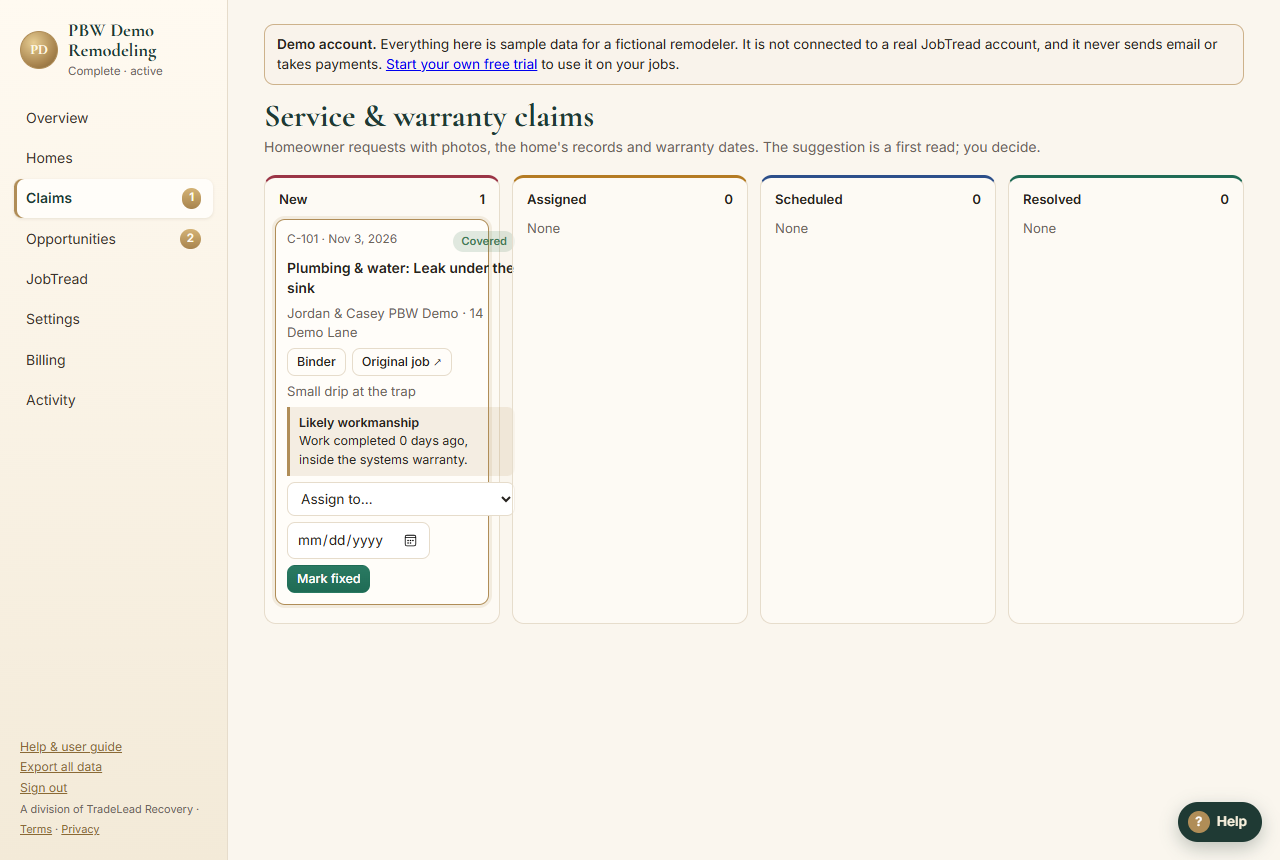
Each request lands in New on the claims board. Move it across as you work on it:
- New → Assigned: pick who handles it, your crew or the sub who installed that part. We show who installed it from the job's vendor orders. Or send a work order (below).
- Scheduled: set the visit date. The homeowner gets an email, and the visit goes on the JobTread job's schedule. The card then says On the JobTread schedule.
- Fixed: click Mark fixed and say what was done. The homeowner gets an email, and the fix shows in the service log at the back of their binder.
- Covered or not: each card shows whether the problem is inside the warranty term. A short courtesy period after the term ends lets you pick Courtesy fix.
- The yellow box is our first read on the request, like "Likely workmanship." You always make the call.
- Moved a card too far? Click ← Back.
Work orders to subs
Send the fix to the sub who did the work, and let PostBuild Works chase it for you.
- On the claim card, click Send work order to a sub.
- Pick the sub. Leave the email blank to use the one on their JobTread vendor record, or type one in.
- Pick a finish by date. Urgent requests start at 2 days and others at 10. Add a note if you want, like "Call first."
- Click Send work order.
What happens next: a vendor order goes on the original job in JobTread, and JobTread emails it to the sub. The email has the sub's own private link. (If JobTread can't send it, we email the link ourselves.)
What the sub sees on their link. They don't need an account or a password. They see:
- the problem, the address (with a map link), the homeowner's phone and good visit times
- the homeowner's photos
- three steps: 1 Accept & book, 2 Do the work, 3 Close out with photos
- Accept & book: the sub picks a visit date. The claim moves to Scheduled. The visit goes on the JobTread schedule, and you and the homeowner get an email.
- Close out: the sub says what they fixed and adds at least one photo of the finished work. They can't close it out without a photo. The claim is marked fixed, and the homeowner and you get an email.
- Question or can't make it? The sub can send you a message from the same page. It comes to your email.
Follow-ups until it's done. If the sub hasn't booked or closed it out, we remind them by email. Reminders go out after 1 day, after another day, then every 2 days, up to 8 in all. After 3 reminders, you get an email so you can call them or reassign it. Each reminder is also noted on the work order in JobTread.
On the claim card you'll see where the sub is: Sent, not opened → Opened, not booked → Visit booked → Closed out with photos. A red Past due means the finish-by date has passed.
- Preview as sub: see exactly what the sub sees.
- Remind now: sends a reminder right away.
- Cancel: cancels the work order and stops the reminders.
The sub's completion photos show on the claim card. They're also saved in the JobTread job's files, in a folder called Warranty.
Cost to fix
Under warranty, the sub who did the work usually comes back and fixes it for free. Then the claim costs you $0, and you don't need to enter anything. Money only shows up when something falls through the cracks. For example, the sub is out of business, nobody clearly owns the problem, your own crew goes out, or it's a courtesy fix.
Each claim card shows Cost to you. Click Add costs and fill in only what came out of your pocket:
| Line | What to put |
|---|---|
| Who paid for the fix? | The sub fixed their own work · We paid · We paid, then backcharged the sub · The homeowner paid |
| Our crew hours × Rate | Your crew's time. The rate you used last time is filled in for you. |
| Materials | Parts and supplies |
| Paid another sub | When you had to pay a different sub or vendor to fix it |
| Other | Trip charge, dump fee, permit |
| Backcharged to the sub | What you billed back to the sub who caused it. This comes off the total. |
From JobTread, on its own:
- If you sent a work order, its line items come over by their JobTread cost type (Labor, Materials, Subcontractor). The card says from JobTread.
- If your own crew handles it, time they log on that job while the claim is open counts as labor. The time entry's notes or cost item just need to say "warranty", "service" or "callback", or include the claim number (like C-104).
- Changing who paid, the backcharge or the note keeps the JobTread amounts syncing. If you type your own amounts, yours win.
These costs add up in Reports, so you can see which subs and which parts of the house cost you the most.
6. Reports
Every warranty claim, sliced the way you want. Use it to answer questions like "Which sub costs me the most?" or "What keeps breaking in bathrooms?"
- Filter: pick any mix of Sub or crew, Claim status (or "All open"), Project, Area of the house, Work order status, where it Came from (homeowner record or JobTread form), and a date range. Clear filters starts over.
- Group by: sub, claim status, project, area, where it came from, work order status, coverage, or month. The table shows claims, open, average days to fix and cost for each group.
- Drill in: click a name in the group table to show only those claims.
- Sort: click any column heading in the claims list. Click again to flip the order.
- Download: Download this view (CSV) gives you exactly what's on screen. Full report (CSV) gives you everything. Both open in Excel or Google Sheets.
What the numbers mean
- Cost to you: the total of the costs on those claims, after backcharges. Where the money went splits it into crew labor, materials, other subs and other costs, and counts who paid for each fix.
- Claims per 10 homes: how many callbacks for every 10 homes that sub worked on. It's fair to big and small subs alike. Lower is better.
- Repeat visits: times the same sub had to go back to the same home.
- Average days to fix: from the day it was reported to the day it was fixed.
In JobTread too. Each sub's numbers are on their vendor record in JobTread: pbw_warranty_callbacks, pbw_warranty_cost and pbw_callbacks_per_10_homes, plus a pbw_scorecard_link back here. They update whenever those numbers change.
7. Opportunities
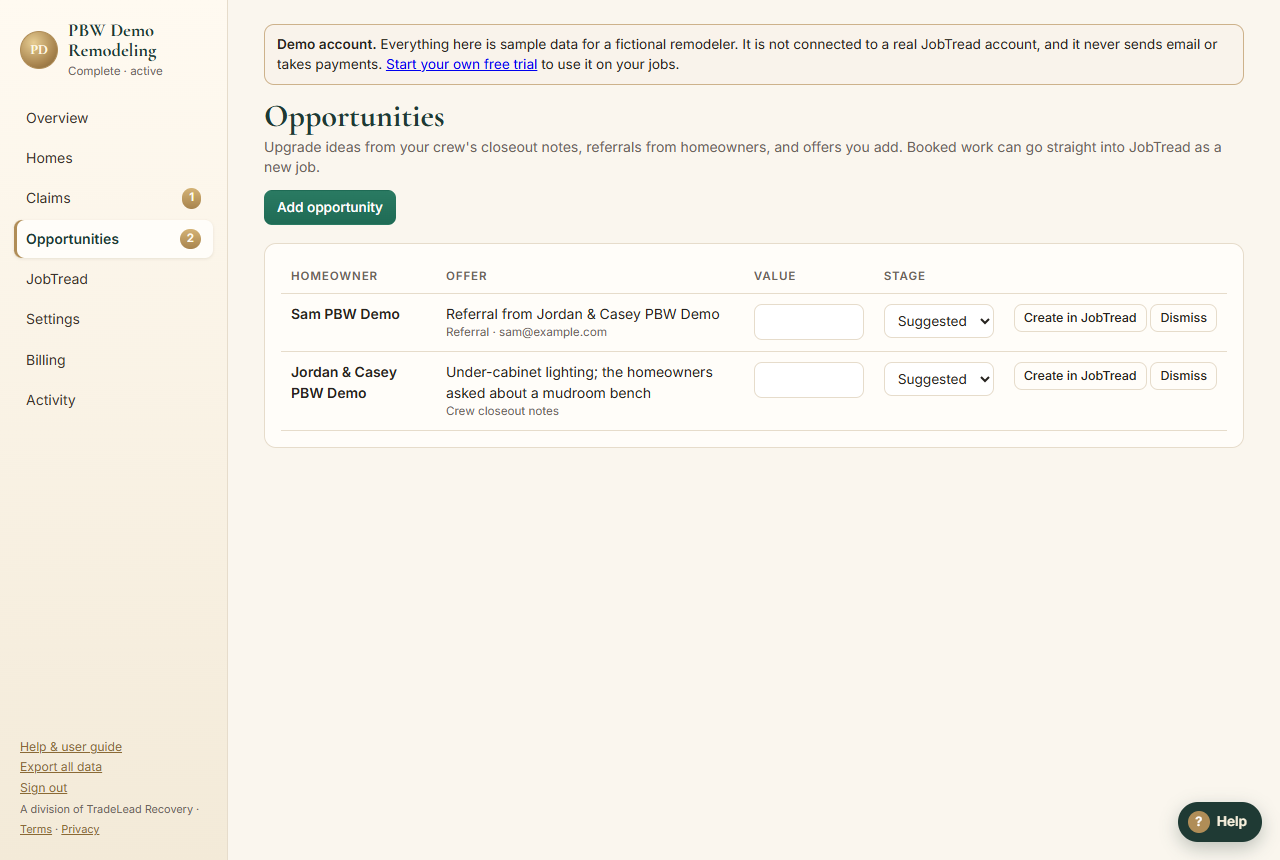
Past customers are your best new work. Opportunities come from:
- upgrade ideas your crew notes on the closeout form
- homeowner referrals from the binder
- anything you add yourself
Move each one through Suggested → Offered → Booked → Won and add its value. Create in JobTread opens a new JobTread job for that homeowner. Dismiss hides one you won't pursue.
8. Settings
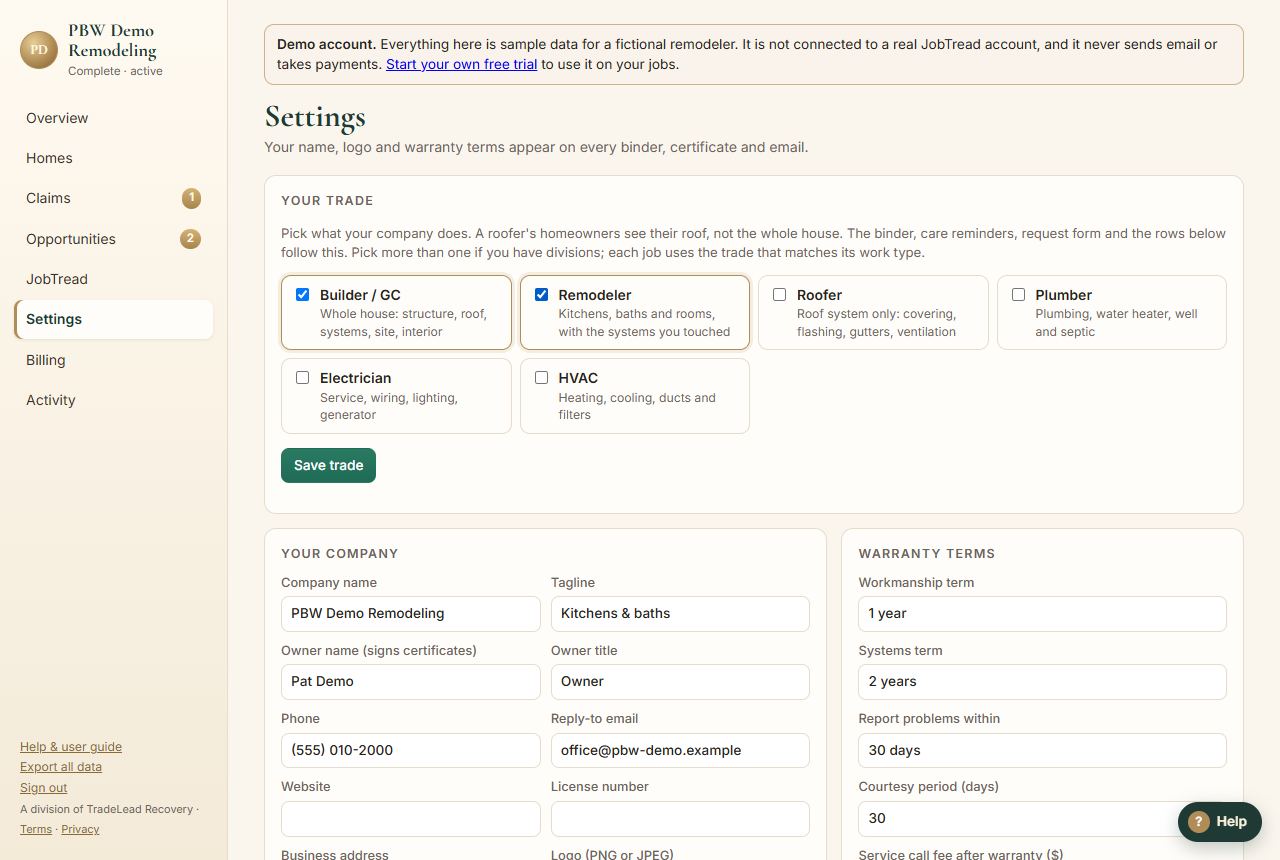
- Your company: your name, logo, phone, reply-to email, license number and the owner who signs certificates. These appear on every binder, certificate and email. Homeowner and sub emails come from your company name, and replies go to you.
- Warranty terms: the workmanship and systems terms, when problems must be reported, the courtesy period, the service-call fee after the warranty, and the certificate number format. By default the certificate number is the JobTread job number plus the day the warranty starts, for example 1041-20261103.
- If the home is sold: choose whether each warranty transfers to a new owner. This is your choice unless your state's law says otherwise.
- Your trade: the same picker as Step 1 on the JobTread page.
9. Billing
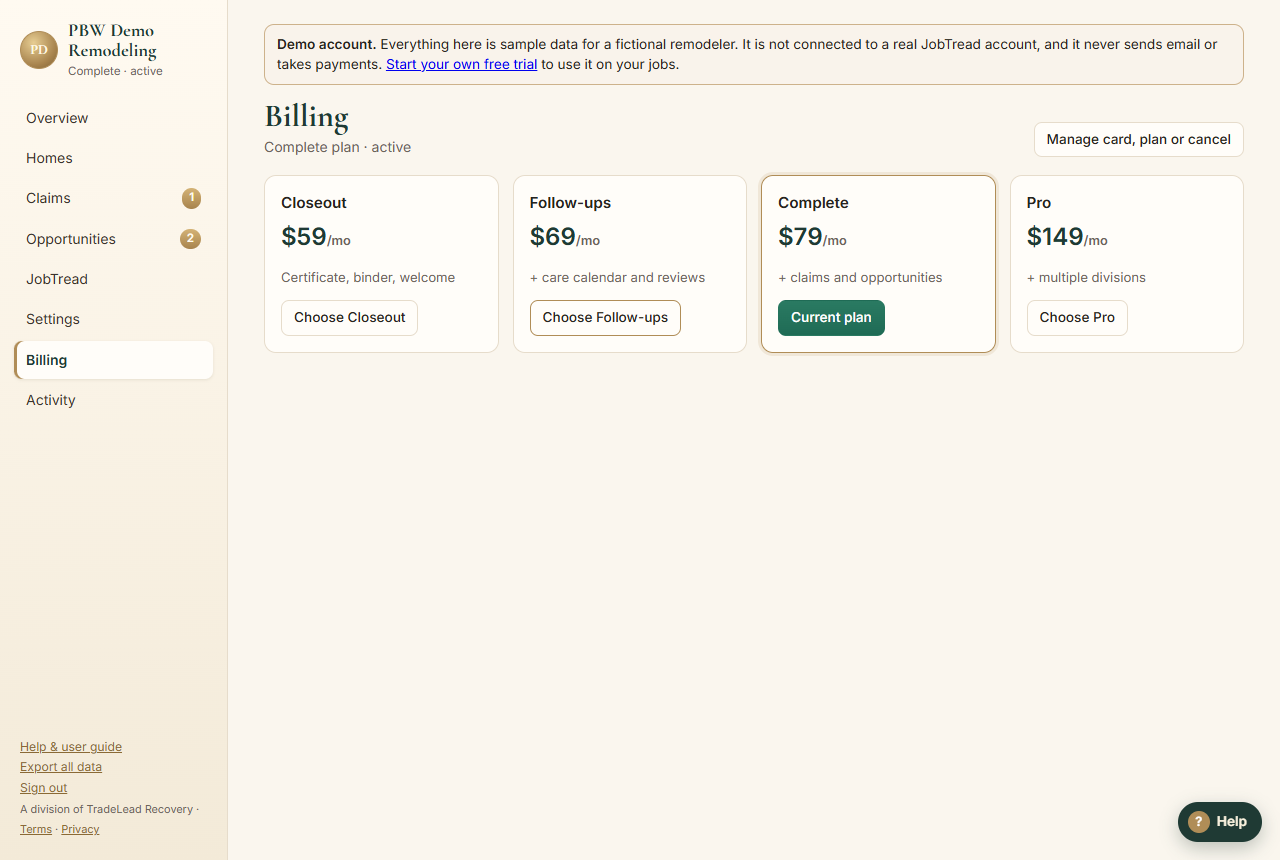
| Plan | Per month | Includes |
|---|---|---|
| Essentials | $69 | Certificate, binder and welcome, plus the care calendar, check-ins and review requests |
| Complete | $89 | + claims and opportunities |
| Pro | $129 | + multiple divisions |
Pick a plan on the Billing page to pay by card through Stripe. Manage card, plan or cancel opens your billing portal, where you can update the card, change plans, see invoices or cancel. Card statements show POSTBUILD WORKS.
If a plan is canceled, or payment was never finished, follow-ups pause. Your homes and history are kept, and homeowners' binders keep working.
10. Activity & export
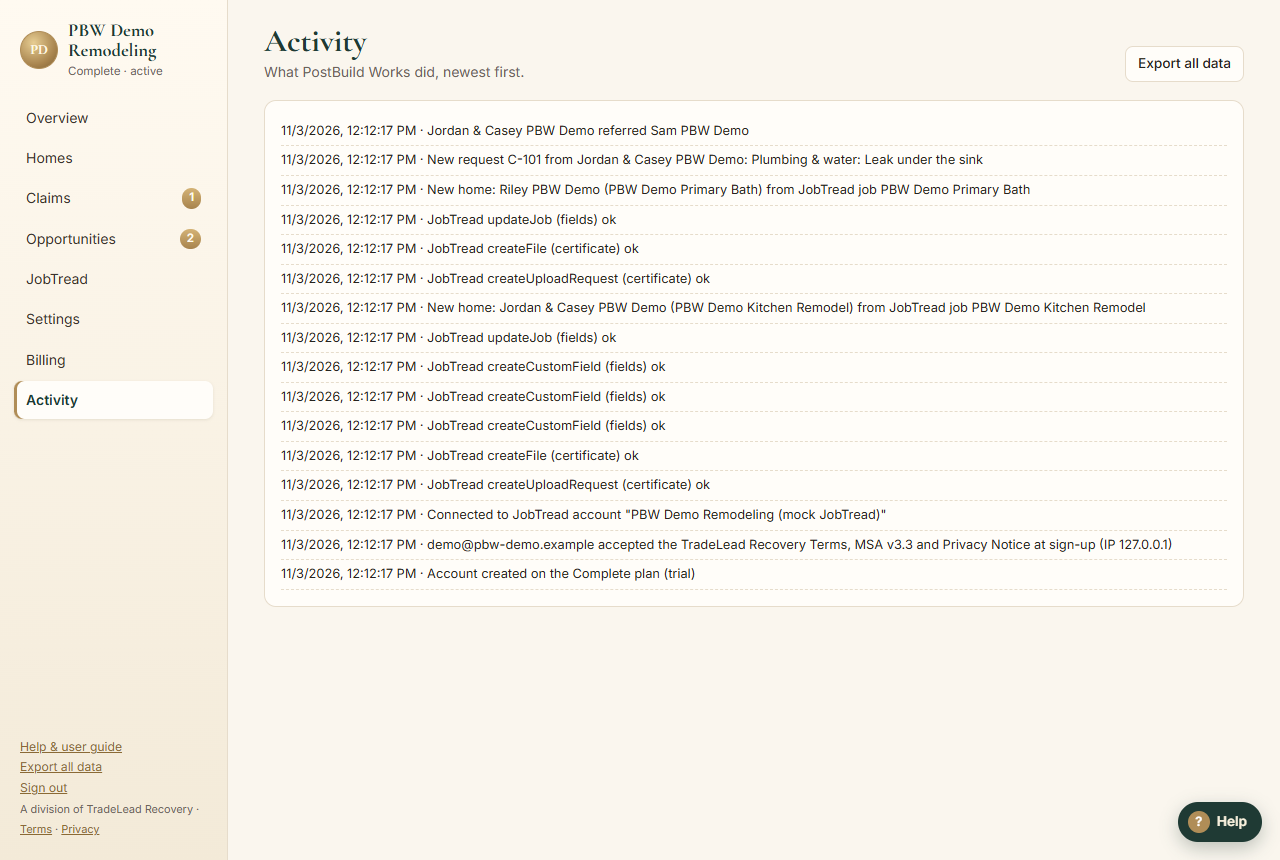
Activity lists everything PostBuild Works did, newest first. That includes every JobTread read and write, every email, every work order reminder, and every setting change. If something looks wrong, check here first.
Export all data downloads all your homes, claims, opportunities and history as one file. Your data is always yours.
11. What homeowners see
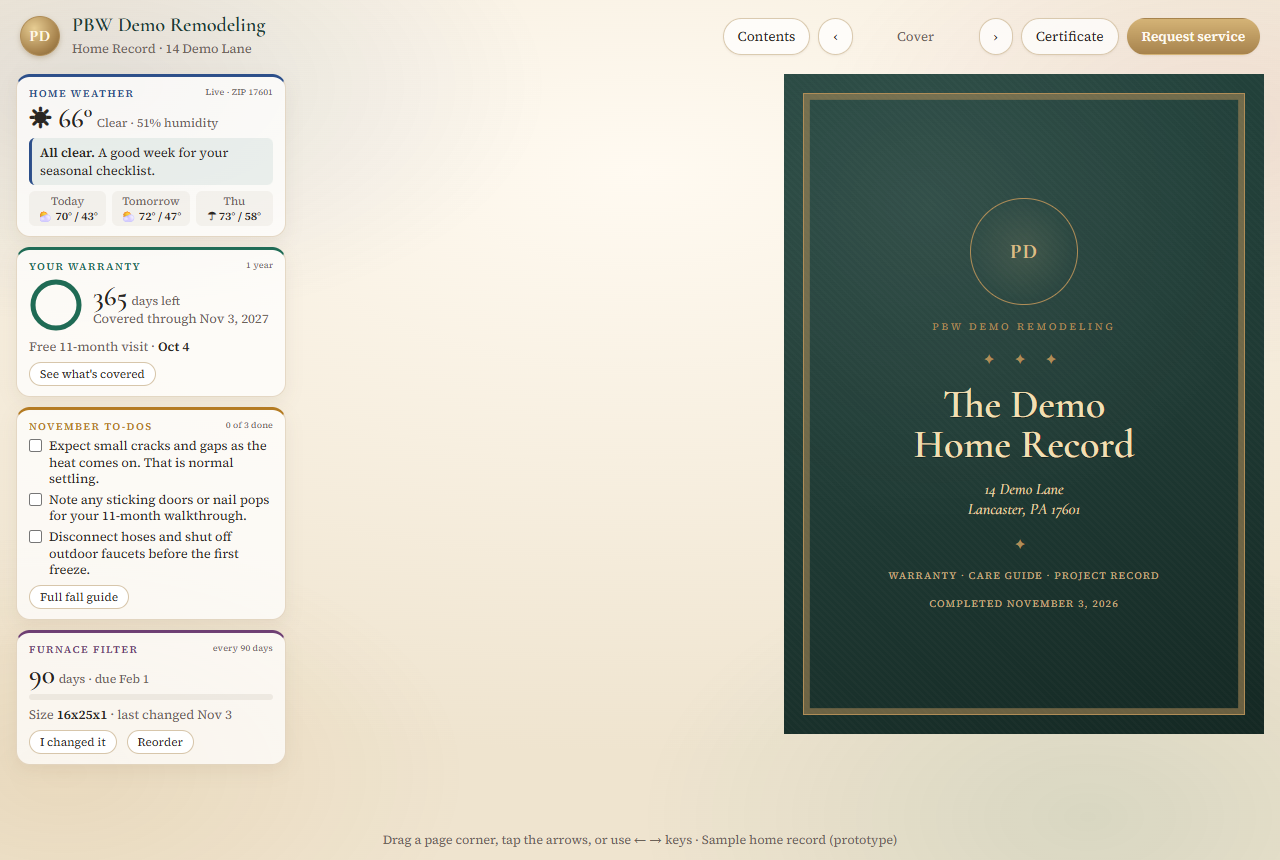
Each homeowner gets a private link, emailed from your company. It works on any phone or computer with no app or password, and it can go with the house if they sell. Want to see it yourself? Use Preview as homeowner.
The home binder
A page-turning record of the project:
- the warranty and what it covers
- who installed each part
- selections, colors and serial numbers
- shut-off locations
- manuals and documents
- a seasonal care guide and the service log
Side panels show local weather tips, warranty days left, this month's to-dos and filter reminders.
Request service
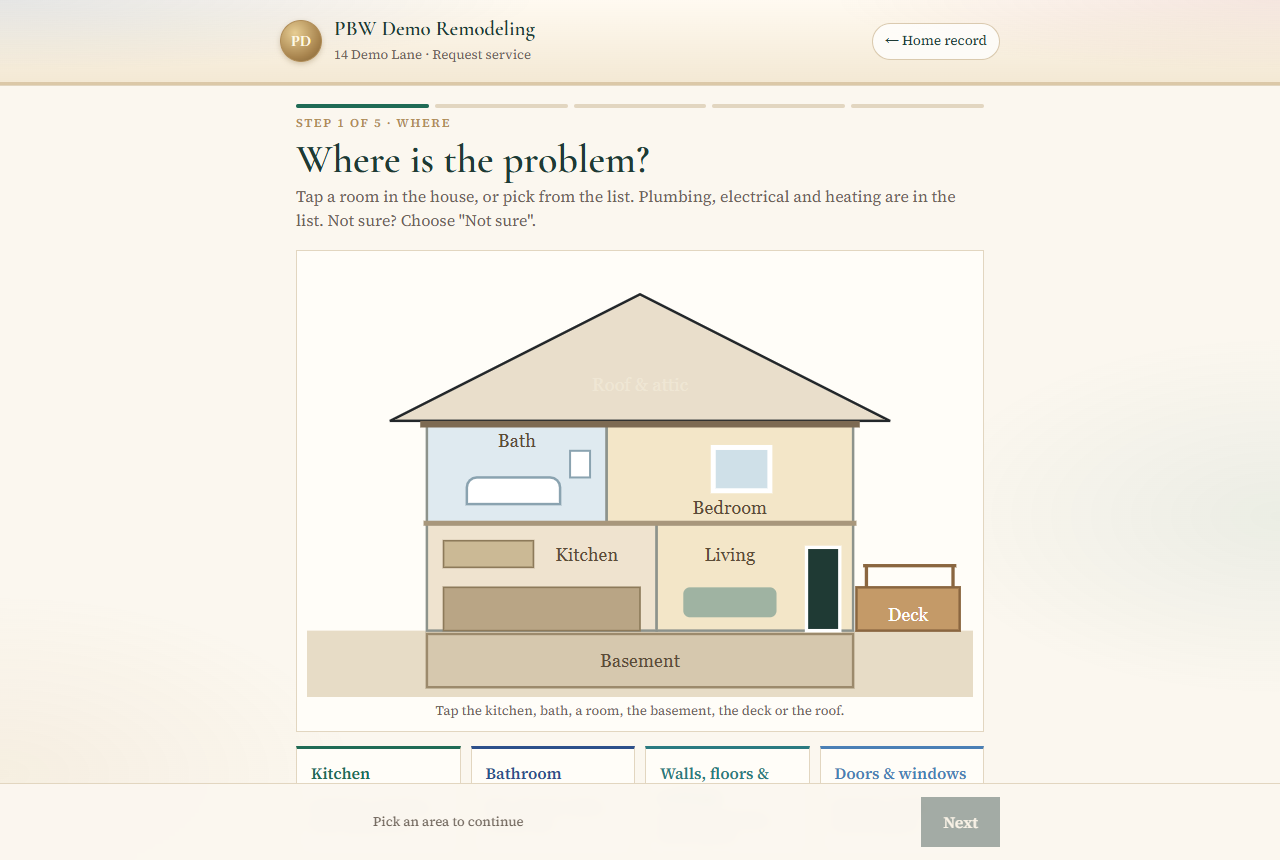
Five short steps:
- Where: the homeowner taps the part of the house on a drawing, or picks from the list. The box under the drawing says what they picked in plain words, like "Gutters & downspouts · Overflowing, loose, draining by the house."
- What: the problem, from a short list for that area, and how urgent it is.
- When: when it started, and times that work (they can pick several, and you confirm one).
- Show us: photos or a short video, plus notes.
- Review and send.
The areas on the drawing: Kitchen, Bathroom, Walls, floors & ceilings, Doors & windows, Laundry & utility room, Basement, Garage, Deck, porch & steps, Siding & trim, Gutters & downspouts, and Roof & attic. Plumbing, electrical, and heating and cooling are in the list, along with "Not sure."
It lands on your claims board.
The warranty certificate
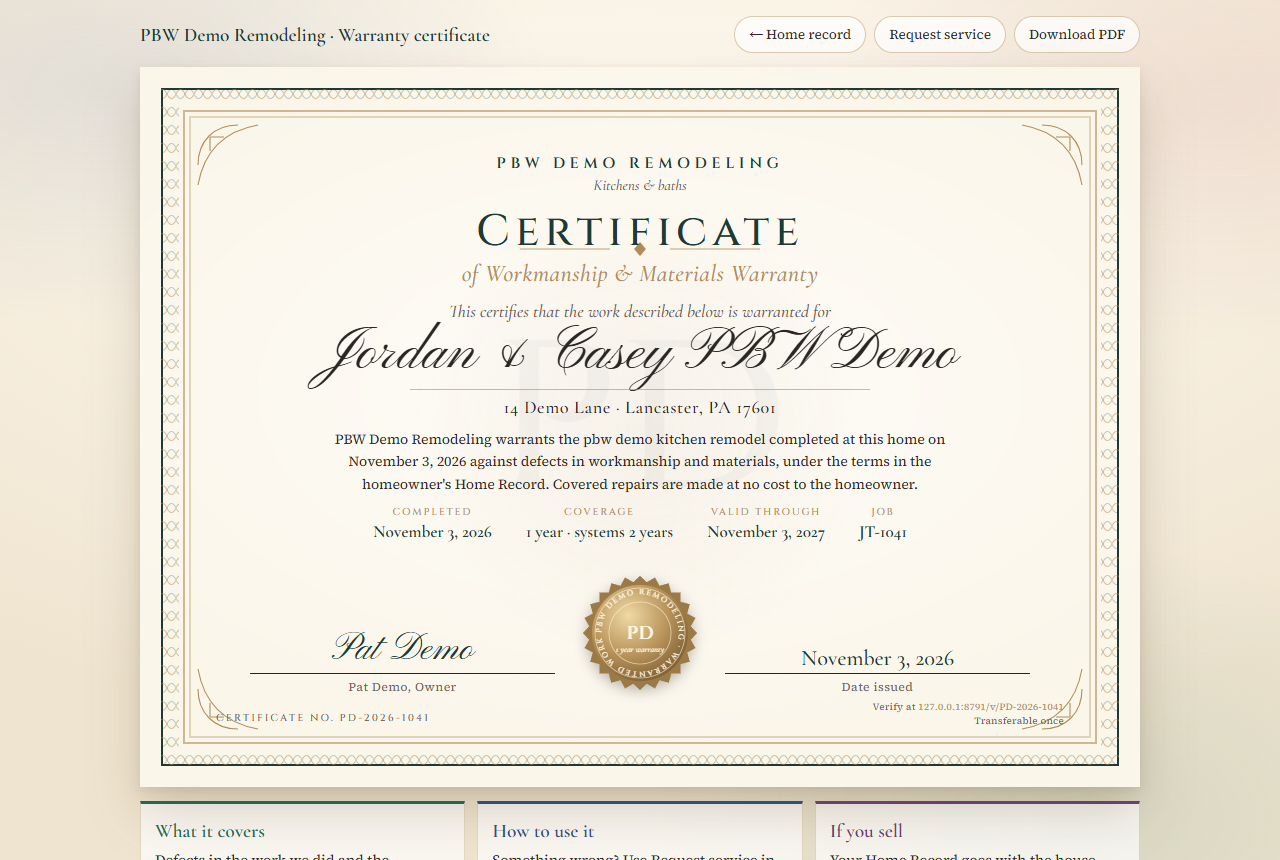
A signed certificate with a number anyone can check online, for example a buyer when the home is sold. It's also filed in the job's files in JobTread.
12. Questions & fixes
A job closed but no home showed up.
- Click Check JobTread now on the Overview.
- Check Step 6 on the JobTread page. If it's set to wait for the closeout form, the home appears once the form is submitted, or after 3 days.
- Jobs that were already closed before you connected are not picked up. Use Bring in past jobs instead (jobs closed in the last 90 days).
- Look in Activity for any error from JobTread.
The binder is missing details, such as colors or shut-offs.
Fix the row in Step 4, or add the question to your closeout form. New homes pick up the change. For an existing home, use Edit on the Homes page.
The "Add fields to JobTread for me" button is grayed out.
Adding things to JobTread may be paused for your account during setup. Ask us to turn it on, or add the fields yourself (Step 3 shows how).
A claim went to the wrong sub.
Check the cost codes on that job's vendor orders and bills in JobTread. Then set the right sub in Step 5. You can always re-assign the claim by hand.
The sub says they never got the work order.
Check their email on their JobTread vendor record (primary contact), and ask them to check spam. Click Remind now on the claim card to send the link again. You can also copy the link from Preview as sub and text it to them.
Requests from our JobTread warranty form aren't showing up.
Make sure that form is picked in the Warranty requests row in Step 4, and that the form is filled in on the job (not on its own). Then click Check for new jobs now.
A homeowner didn't get the welcome email.
On the Homes page, check the email with Edit, then click Resend. Ask them to check spam. The email comes from your company name.
The certificate or pbw_ fields aren't in JobTread.
Check the switches in Step 6, and the Activity log. Writing to JobTread may also be switched off for your account during setup. Ask us to turn it on.
Our JobTread key changed, or someone left the company.
Create a new grant in JobTread. Then click Unplug PostBuild Works from JobTread and connect again with the new key. Delete the old grant in JobTread.
Does PostBuild Works sell warranties or insurance?
No. PostBuild Works is software. The warranty is yours, on your terms. PostBuild Works delivers it, tracks it and handles requests for you.
13. Get help
Stuck on a step? Email support@postbuildworks.com. Tell us your company name and which page you're on. Never send your JobTread key by email.